

How to flash DMA firmware with MewTools
Your firmware comes as a file ending in .bin. You flash it (write it onto the card) with MewTools, our free tool, in about ten minutes. The card's second USB-C port, called JTAG, does the job of a separate flashing tool, so you don't need one.
On MiTM? It's set up differently, because it runs from your second computer and your slot is tied to that PC, not the card. Open a ticket before you flash anything and we'll take you through it. MiTM firmware explains how it works.
The one rule, before anything else
DO NOT boot into Windows with the card plugged in until it's flashed. A new card still has factory firmware on it, and Windows logs that device. If it already happened, tell us in your ticket. The fix is to reinstall Windows on the main PC.
While you flash, the main PC is on and sitting in the BIOS, only so the card has power. To get there, press the key your motherboard shows as it starts and leave it on that screen. It's often Delete or F2, and the BIOS guide lists each brand. The flashing itself happens from your second computer over the JTAG port.
Before you start
Get MewTools onto your second computer first: download it from GitHub. The file is MewTools.exe. Only ever run it on your second computer, never on your main PC.
Right-click MewTools and choose Run as administrator, or the driver buttons won't work. If Windows warns you, choose More info, then Run anyway. Any other block, or your antivirus removing it, is covered in MewTools blocked by Windows.
If you haven't done the DNA ID and msinfo32 guide yet, do that first. Without it you have no firmware file.

Check MewTools sees the card
Open MewTools on your second computer and look at the top right.

- It should say JTAG ACTIVE (Flashing Mode).
That means the drivers are in and the cable is in the right port. - Not showing?
Open Drivers & Flashing on the left, press Install JTAG Driver (CH347 / CH341), then Refresh. - Still nothing?
Check the cable is in the JTAG port and the main PC is switched on, so the card has power.
Read the DNA
On the left, open DNA Grabber and press Read Hardware DNA.
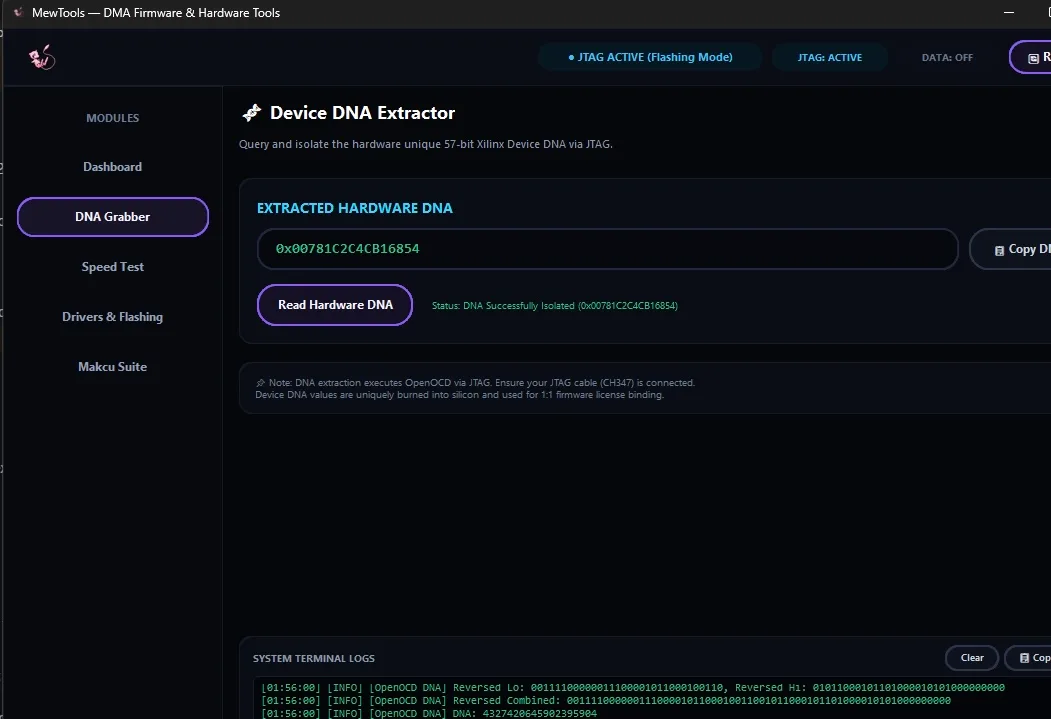
- A long number starting 0x appears.
That's your card's DNA. Compare it character by character with the DNA you sent us. If it doesn't match, stop and tell us in your ticket. Firmware for a different card will flash fine and then not work. - It fails to read.
Install the drivers from the Drivers & Flashing tab and try again. Once JTAG is active, it should read.
Flash the file
Open Drivers & Flashing. If you're not sure which card you have, open Dashboard first and press Auto detect DMA device.
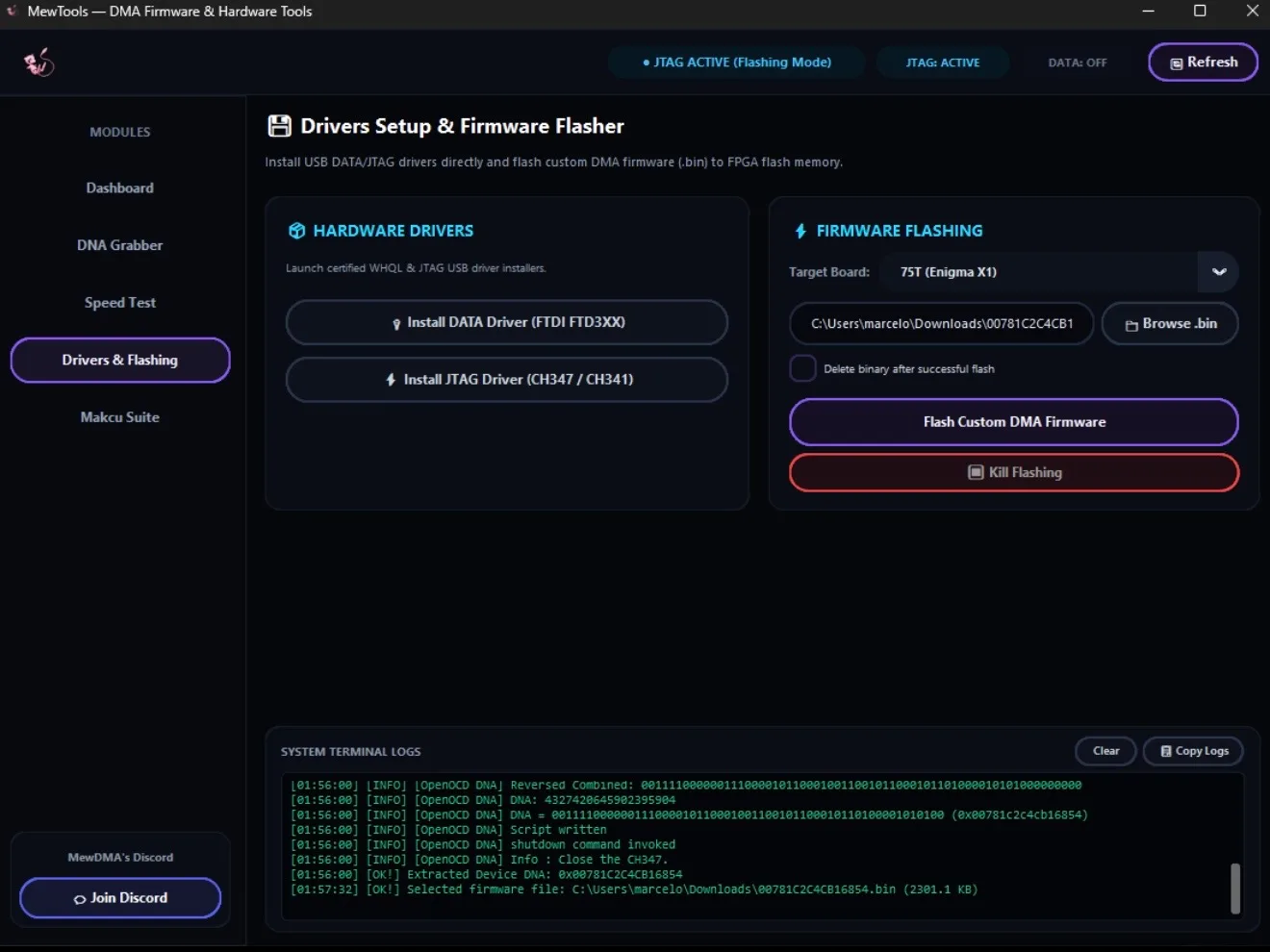
- Target Board.
Pick 100T or 75T to match your card. Ours is the GODLIKE 100T. If your card's size isn't in the list, stop and ask in your ticket. - Browse .bin.
Choose the firmware file you downloaded. Its name doesn't matter to MewTools. Leave Delete binary after successful flash unticked, so you keep a copy. - Flash Custom DMA Firmware, then OK.
- Wait.
It writes the file and then checks it. That takes two or three minutes. Don't unplug anything, keep both computers on and awake, and don't press Kill Flashing unless our team asks you to.
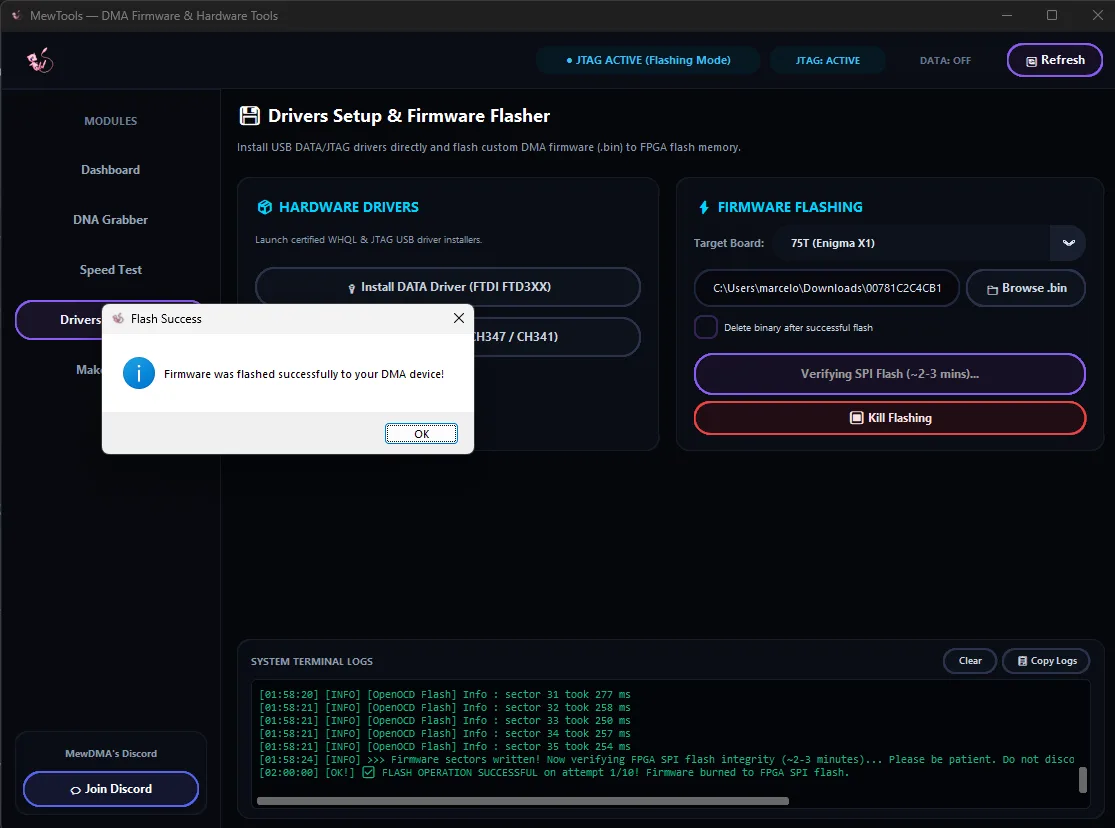
When the box says Firmware was flashed successfully, press OK.
Restart the main PC properly
A normal restart doesn't load the new firmware. The card only loads it after a full power off, so do it the long way.
Set the slot's PCIe speed
It's different on every PC. As the main PC starts, go into the BIOS and set the card's slot to the highest option. Then go down one step at a time until the card is stable. The PCIe slot speed shows where it is on each brand.
Check the flash worked
Let the main PC start into Windows this time, now that the card is flashed.
- In your ticket.
Tell us you've flashed and we'll check the device came up right. If nobody answers right away, carry on with the next step. - On the card.
The power light and the PCIe status light should be on steady. If the PCIe light blinks or stays off, see the card's lights. - On the second computer.
Open Device Manager (right-click Start, then Device Manager). Under Universal Serial Bus controllers, FTDI FT601 USB 3.0 Bridge Device should be listed with no warning triangle. If it has one, press Install DATA Driver (FTDI FTD3XX) in MewTools. - Activate it.
The activator and your key are on your order page. The activator runs on your second computer, not the main PC. Download and extract it, open the .exe, paste the key, tick remember key and press activate device. A tick means it's active. Do it again every time your main PC restarts. A key lasts 90 days from when we activate it, and the activator shows the time left. Ask in a Discord ticket for a new one before it runs out. New keys are free.

Run a speed test
Open Speed Test in MewTools and run it.
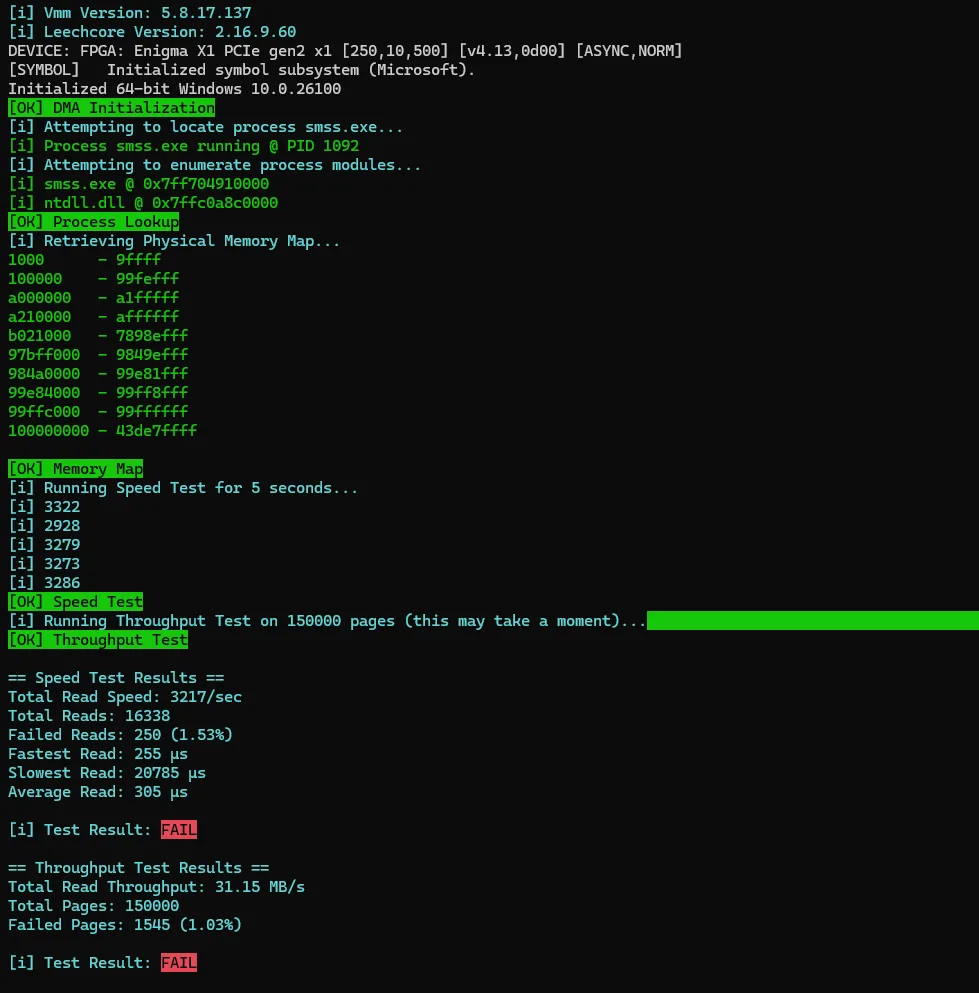
- A FAIL like this is nearly always the cable or the port, not the card.
Use the cable that came with the card, and move it to a different USB 3 port on the second computer, on the back if you can.
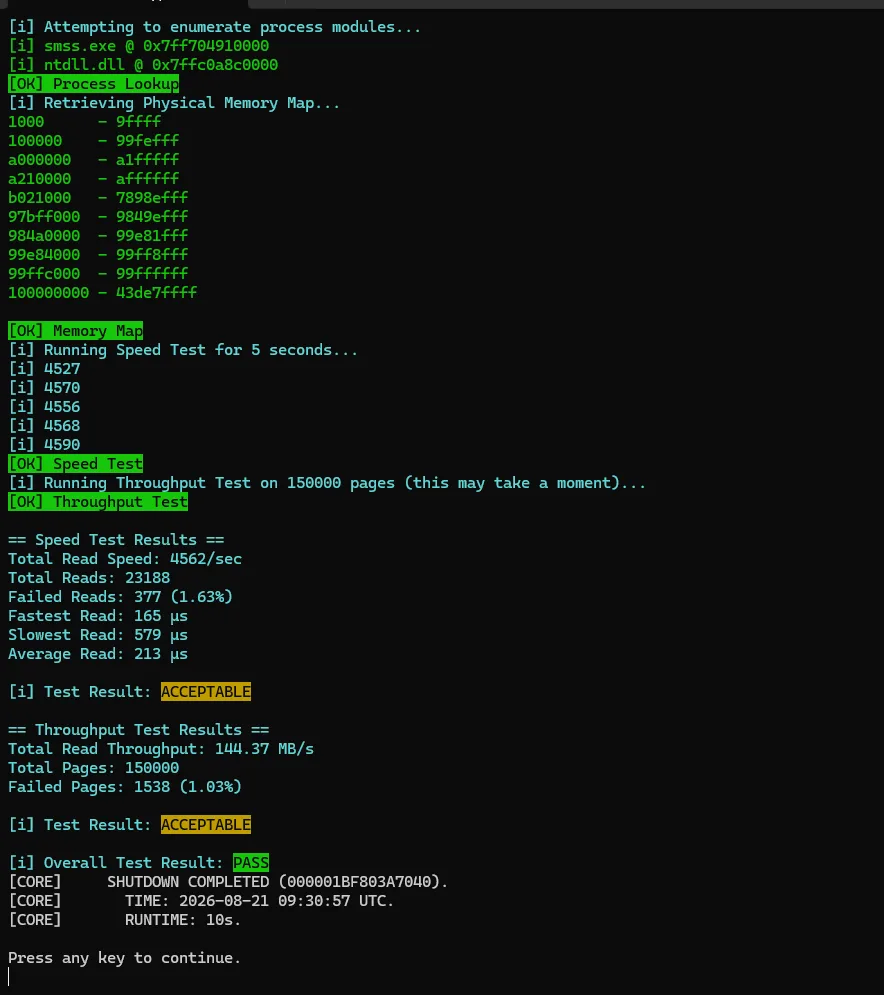
- This is what you want.
ACCEPTABLE or better on both tests and an overall PASS. Your numbers can be higher, depending on your card and your second computer.
If the flash fails or stops
Leave everything plugged in and both computers on. Take a screenshot of what MewTools shows and send it in your ticket before you try again. You can usually fix a card, even after a wrong flash, by flashing again with the right board picked. So wait for us instead of retrying.
More than one card
Flash them one after another. They can all go through the same main PC. Do every step above for each card:
Moving a flashed card to another PC later? Move a DMA card to a new PC or reinstall Windows covers it.
Done
If anything doesn't match the pictures, stop and ask in your ticket with a screenshot. DMA card not working has the common fixes.
No account needed. It tells us what to write more of.