
A healthy GODLIKE 100T on a rear USB 3 port gets a GOOD or GREAT rating, and our team puts its Speed number at about 7,000 to 10,000 reads a second. If yours is in that range, the card and its link are fine.
Run the test
The speed test is on the Card check screen in MewTools. Keep the main PC on, leave it on Quick check under Speed test and press Run test (1), and in about 10 seconds you get the result.
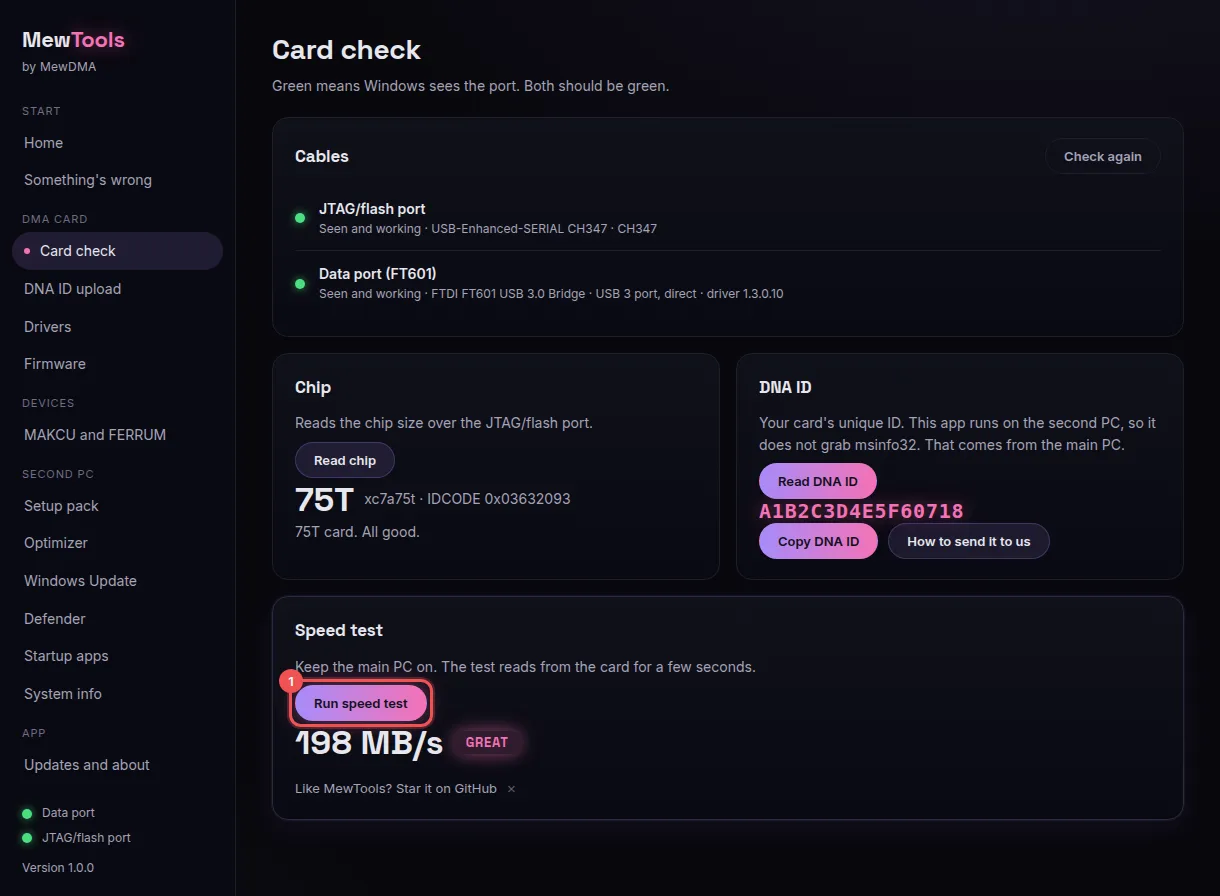
Speed and Throughput
MewTools gives you two numbers. Speed is how many small 4 KB reads the card does every second, in reads/s, and Throughput is how much data big reads move, in MB/s. The rating (FAIL, OK, GOOD or GREAT) only goes by Throughput, so Speed has no rating of its own and you check it against the table below.
Healthy numbers
| A healthy 100T on a rear USB 3 port | |
|---|---|
| Speed | About 7,000 to 10,000 reads/s |
| Throughput | 140 MB/s and up for GOOD, 185 MB/s and up for GREAT |
The card's USB 3 chip tops out at around 200 MB/s, so the 198 MB/s in the picture is about as fast as it gets, and its 7,480 reads/s is a healthy Speed too. What a healthy Speed is on USB 2, or on other brands' cards, is TBD.
If your numbers are low
A low Throughput gets FAIL or OK, and Low DMA speed? goes through every cause, starting with the cable and the port. If MewTools gives you a code, MT-108 to MT-111 are the speed test ones and MewTools card errors has each fix.
If Throughput is GOOD or GREAT but Speed is well under 7,000, do a cold boot, close what you don't need on the second PC and test again. If it's still low after that, open a ticket in our Discord with a screenshot of the test, and How support tickets work says what else to send.
You don't need an account, this tells us what to write more of.