
Start here if you've never used MewTools. It runs on your second PC, the one the card's USB cables plug into, and takes you from a new card to a passing speed test. The red numbers in the pictures match the buttons in the steps.
DO NOT boot into Windows with the card plugged in until it's flashed. Until then the main PC only sits in the BIOS, so the card has power. Main PC Setup shows how. Make your msinfo32 report on the main PC before the card goes in, because you'll send it with your DNA ID.
1. Download and open MewTools
Download the latest version from GitHub on your second PC and run the installer. Only install it on your second PC, never on your main PC.
If Windows says Windows protected your PC, press More info, then Run anyway. That's only because the app isn't code signed yet. MewTools asks for admin when it opens, so say yes, because the drivers and the flasher need it. Any other block is covered in MewTools blocked by Windows.
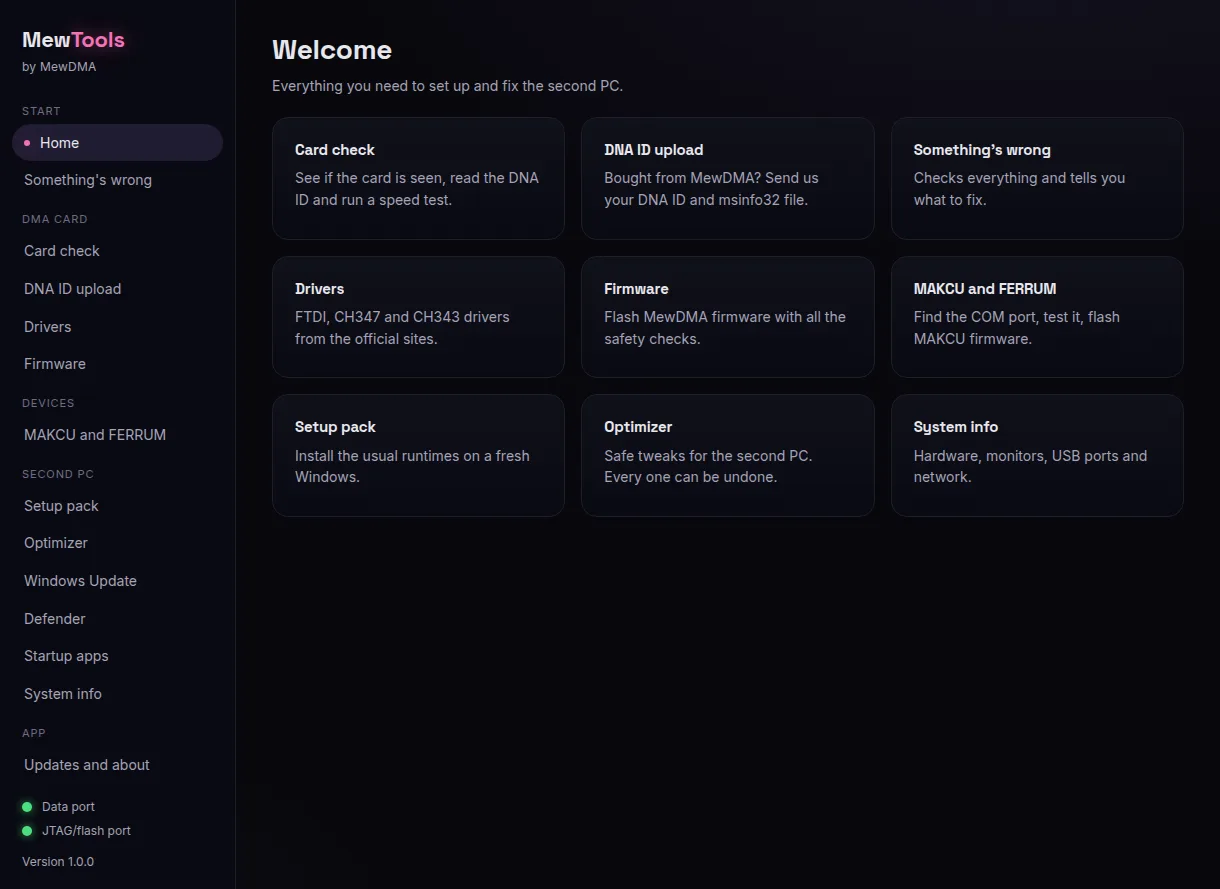
2. Plug in the cable
The card sits in your main PC. Turn the main PC on, go into the BIOS and leave it there, so the card has power.
- GODLIKE 100T, one cable.
It ships with one USB-C cable. Plug it into the card's JTAG port and into a rear USB 3 port on your second PC. After the flash it moves to the data port. - A card with two cables.
Plug the JTAG port and the data port into rear USB 3 ports on your second PC. - Which port is which.
It's printed on the card. If yours isn't labeled, JTAG is the port nearest the gold strip.
If your card has a kill switch, it has to be on. Only flip it with the main PC off.

3. Install the drivers
Open Drivers. A green dot means the driver is in, a red one means it's missing. Press Install (1) next to each red one. Once a driver is in, the button says Reinstall, and you only need that to fix a driver that's acting up.
- FTDI D3XX is the card's data port.
- WCH CH347 is the card's JTAG/flash port.
- WCH CH343 is for MAKCU. Skip it if you don't have one.
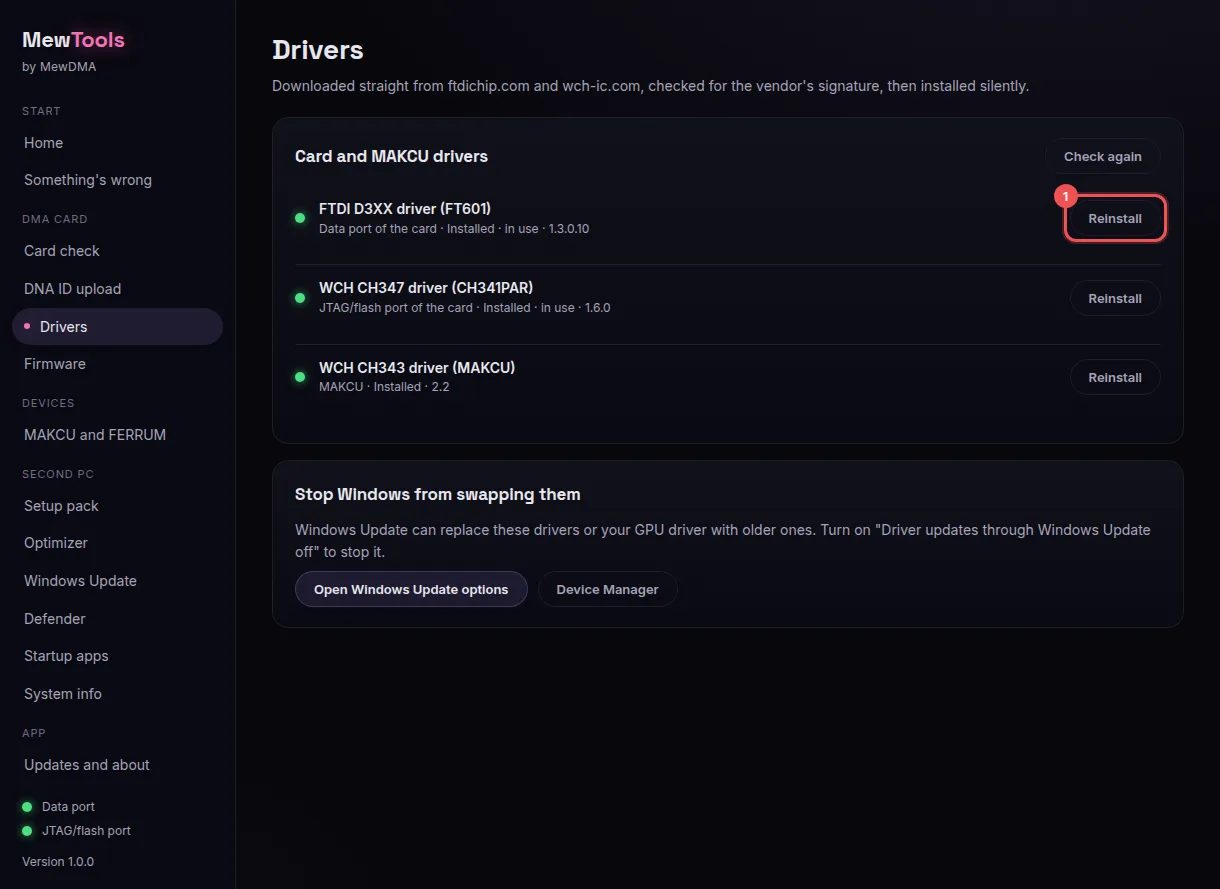
Use the buttons in MewTools. Don't wait for Windows to find a driver.
4. Check the card
Open Card check.
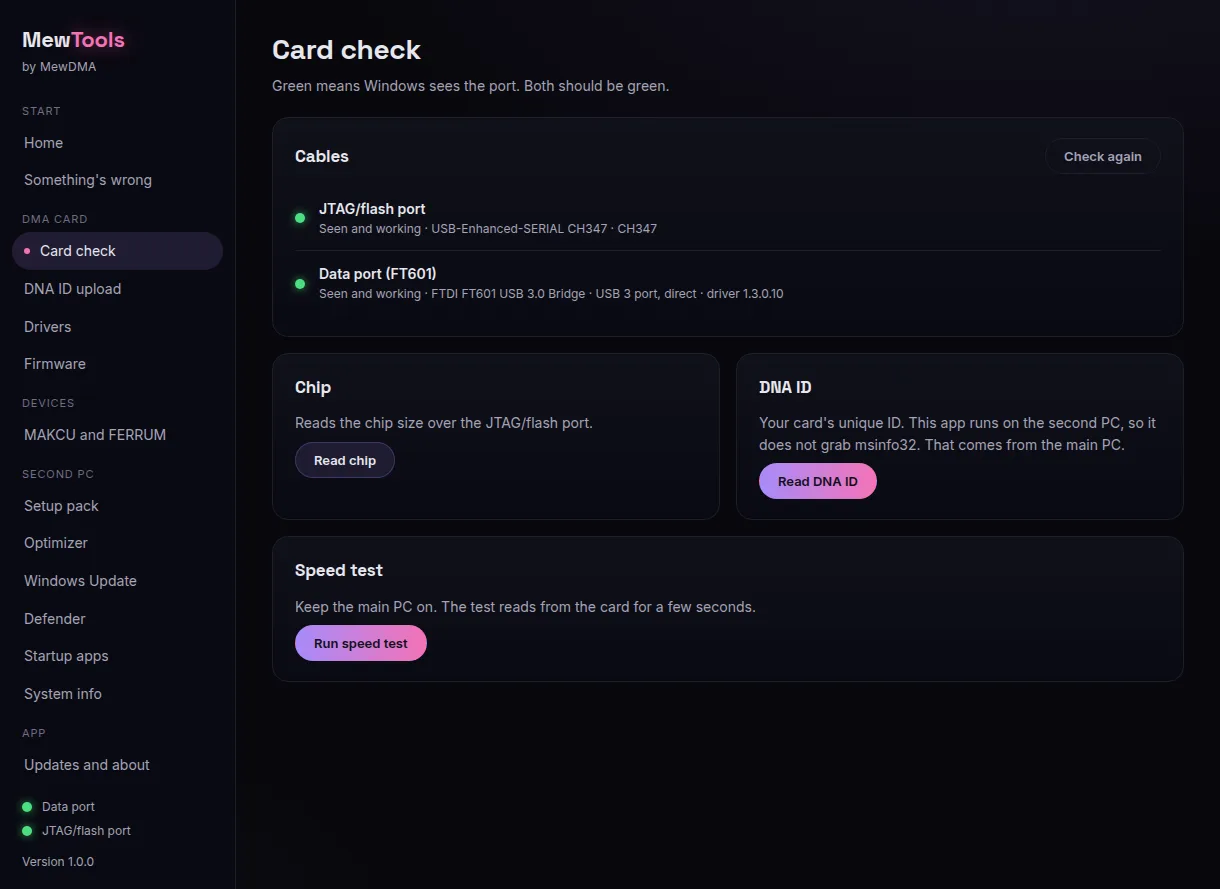
- The JTAG/flash port dot should be green.
With one cable in JTAG, the data port dot stays red until after the flash, and that's fine. With two cables in, both should be green. - A dot is red.
Check the cable is pushed all the way in and the main PC is on. Then install its driver in Drivers and press Check again.
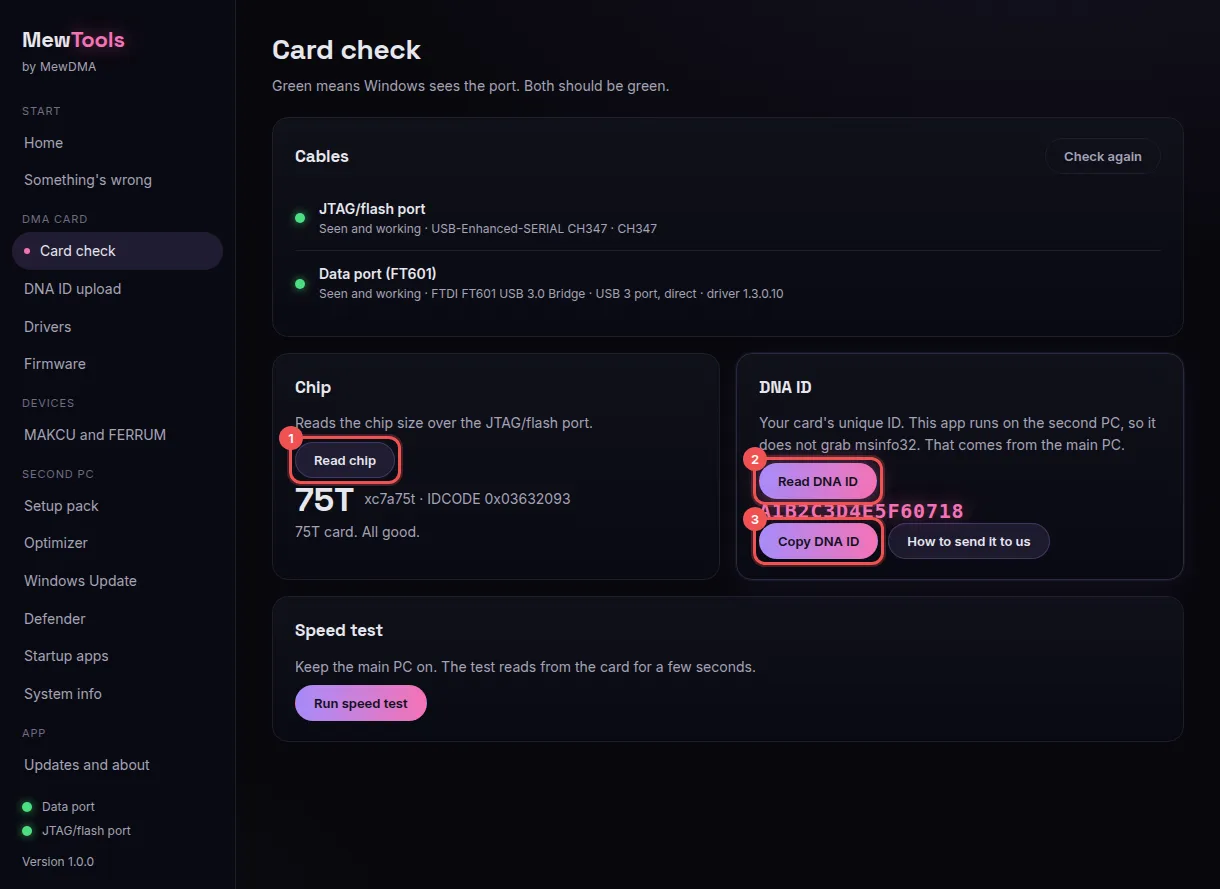
Then press Read chip (1). It shows your card's size: 35T, 75T or 100T. Every build we sell needs a 75T or a 100T. If it shows something else, ask in your ticket before you go on.
5. Send us your DNA ID and msinfo32
Press Read DNA ID (2), then Copy DNA ID (3). Paste it, don't type it. One wrong character and the firmware won't run on your card.
The msinfo32 report comes from your MAIN PC, not the second PC. MewTools runs on the second PC, so it can't grab it for you. Send both from your order page: paste the DNA ID, then upload the report. Your DNA ID and msinfo32 report shows each one and where it goes.
Your firmware usually arrives about 2 hours after both are in, 24 hours at most.
6. Flash your firmware
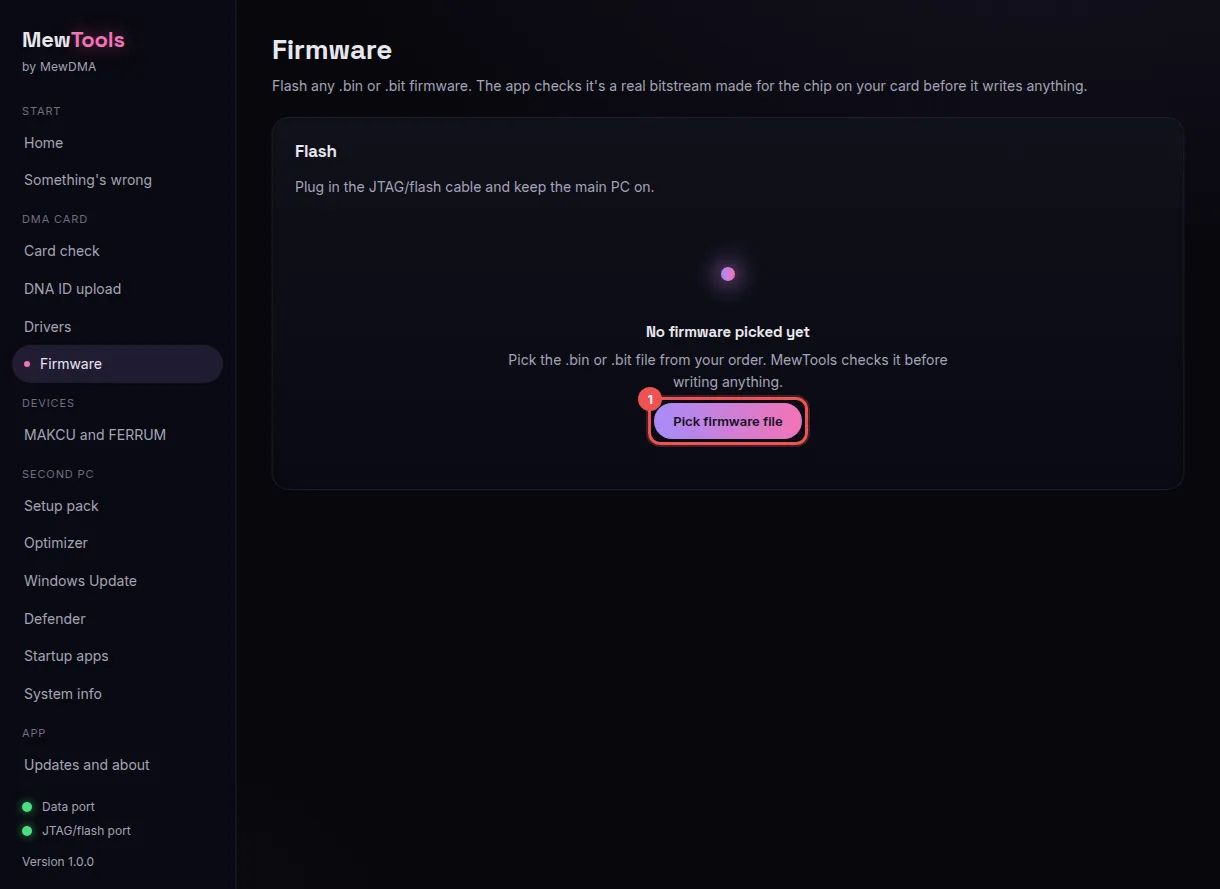
When the firmware arrives, download the .bin file onto your second PC. Keep the main PC on in the BIOS. Open Firmware, press Pick firmware file (1) and choose the file.
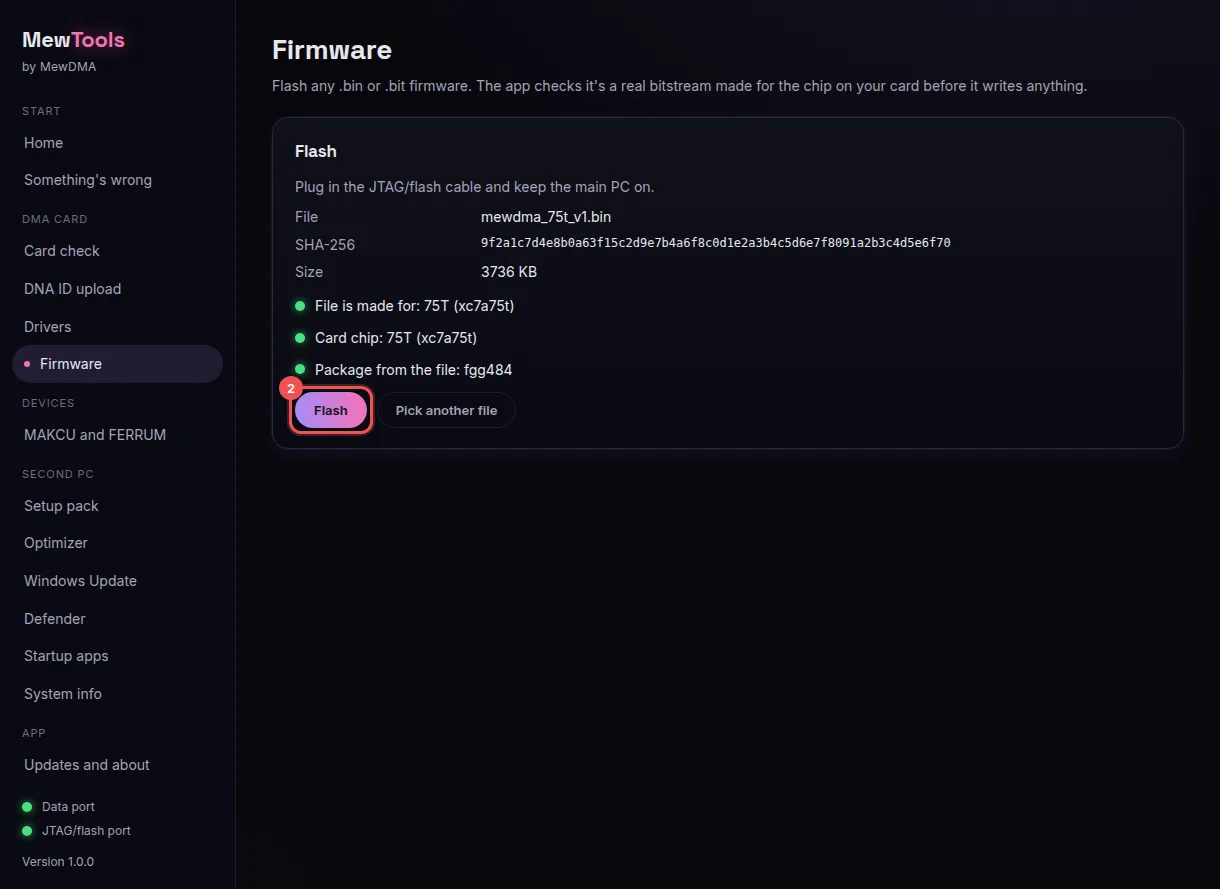
MewTools checks the file before it writes anything. All three dots green? Press Flash (2) and confirm. If a dot is red, it tells you why and won't flash. It takes about a minute, so don't unplug anything.
How to flash DMA firmware with MewTools has every detail, plus what to do with more than one card.
7. Shut down fully, then power on
A restart doesn't load the new firmware. When MewTools says Flash done:
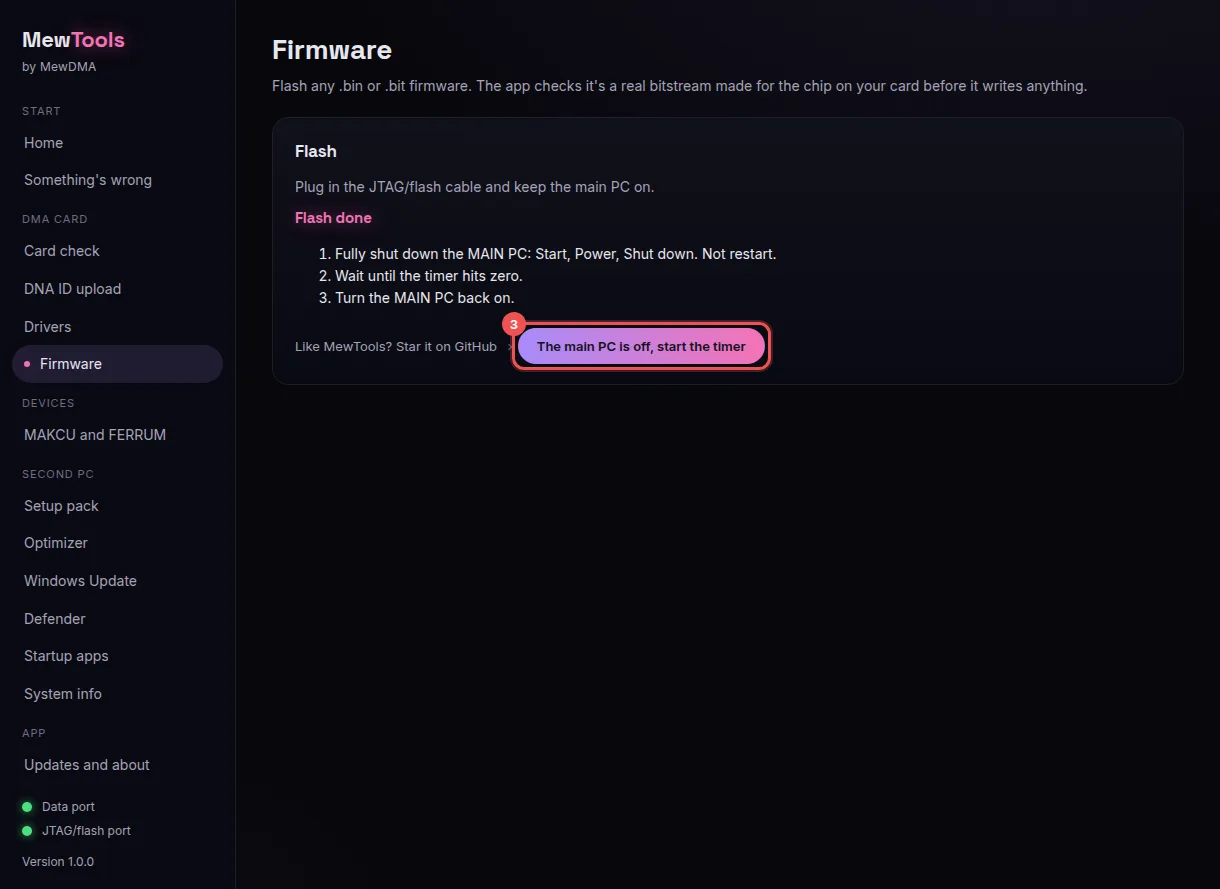
Then activate it. The activator and your key are on your order page, and it runs on your second PC. Check the flash worked has the steps.
8. Run the speed test
In Card check, press Check again. The data port dot should be green now. Then press Run speed test (1). It reads from the card for a few seconds and gives you a speed in MB/s and a rating.
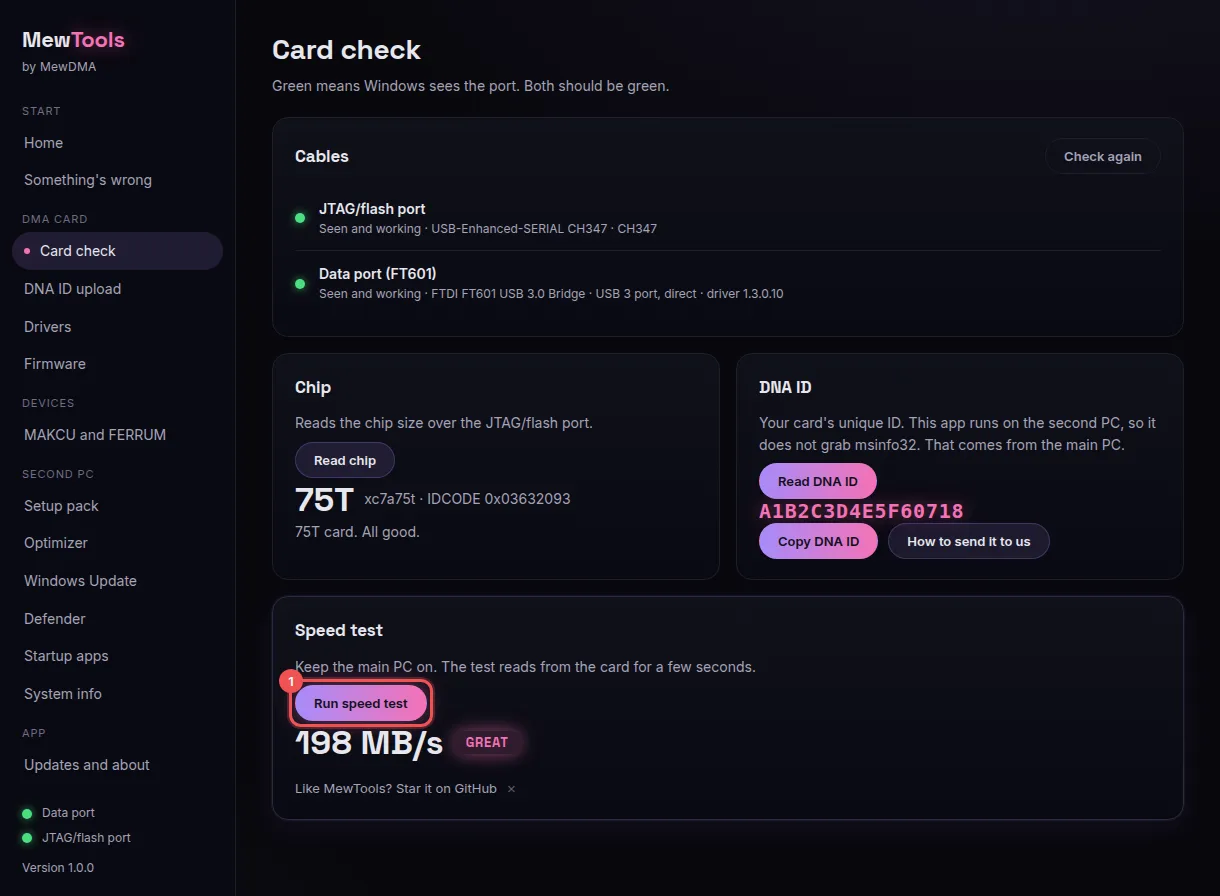
MewTools knows if the card is on a USB 3 port or on USB 2 or a hub, and rates it against the right numbers:
| Rating | USB 3, plugged in direct | USB 2, or through a hub |
|---|---|---|
| FAIL | under 80 MB/s | under 10 MB/s |
| OK | 80 to 140 MB/s | 10 to 18 MB/s |
| GOOD | 140 to 185 MB/s | 18 to 24 MB/s |
| GREAT | 185 MB/s and up | 24 MB/s and up |
GOOD or GREAT on a USB 3 port is what you want. Anything lower is nearly always the cable or the port. Low DMA speed goes through every fix.
9. If anything's off, use Something's wrong
Open Something's wrong and press Check everything. It looks at the card, drivers, ports, power, network and monitors, then tells you what to fix, with a link to each fix.
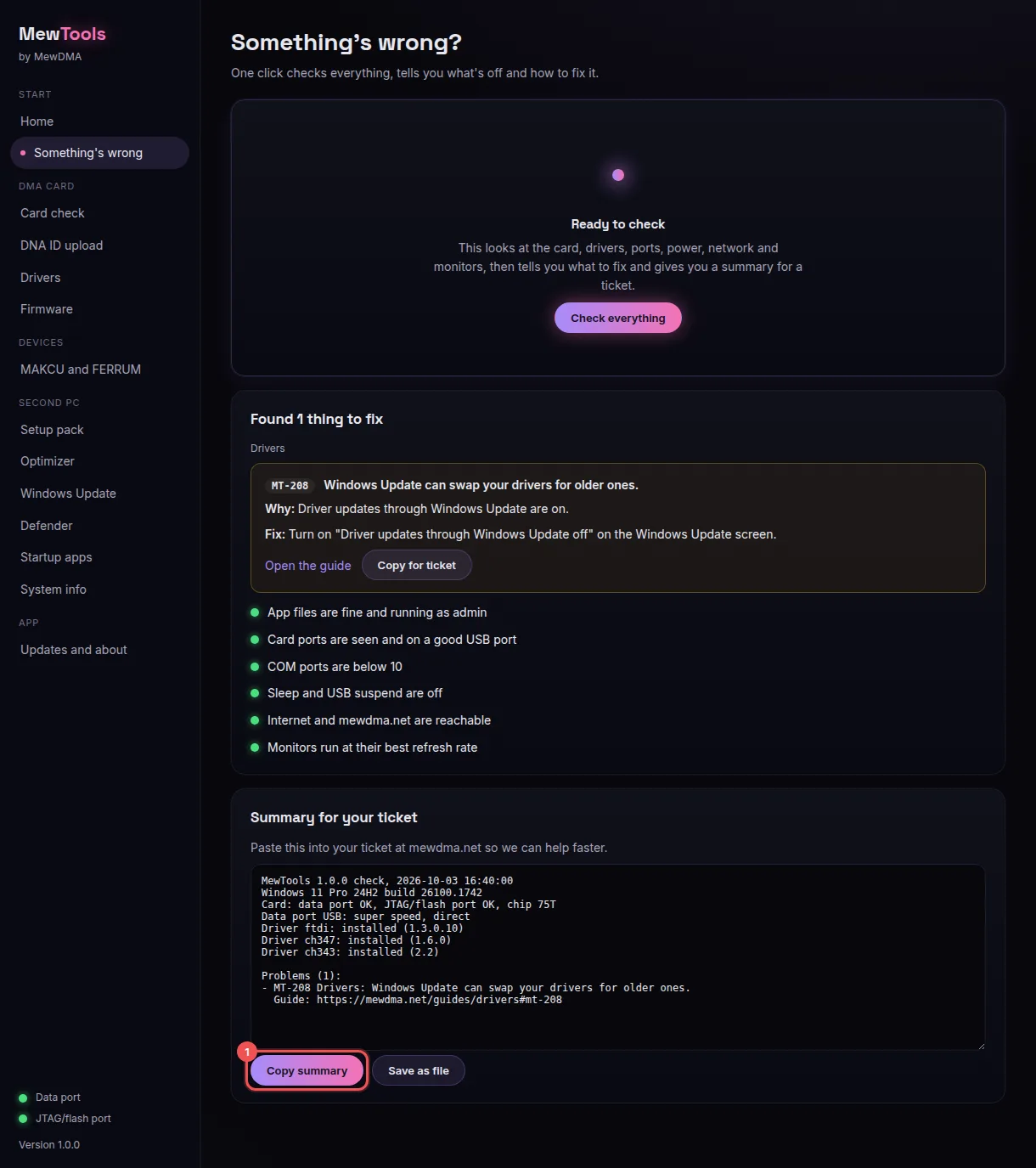
Still stuck? Press Copy summary (1) and paste it in your ticket in our Discord (how to open one). Every problem has a code like MT-108, and the error code pages list each one with its fix.
No account needed. It tells us what to write more of.