

MAKCU setup: wiring, driver and COM port
MAKCU connects to your mouse, your main PC and your second computer. Nothing gets installed on the main PC. If you're not sure MAKCU is the right one, Aim devices: MAKCU or FERRUM compares the two.
Before you start
Wire it up
Turn MAKCU so its three ports face you. The layout is different from FERRUM's.
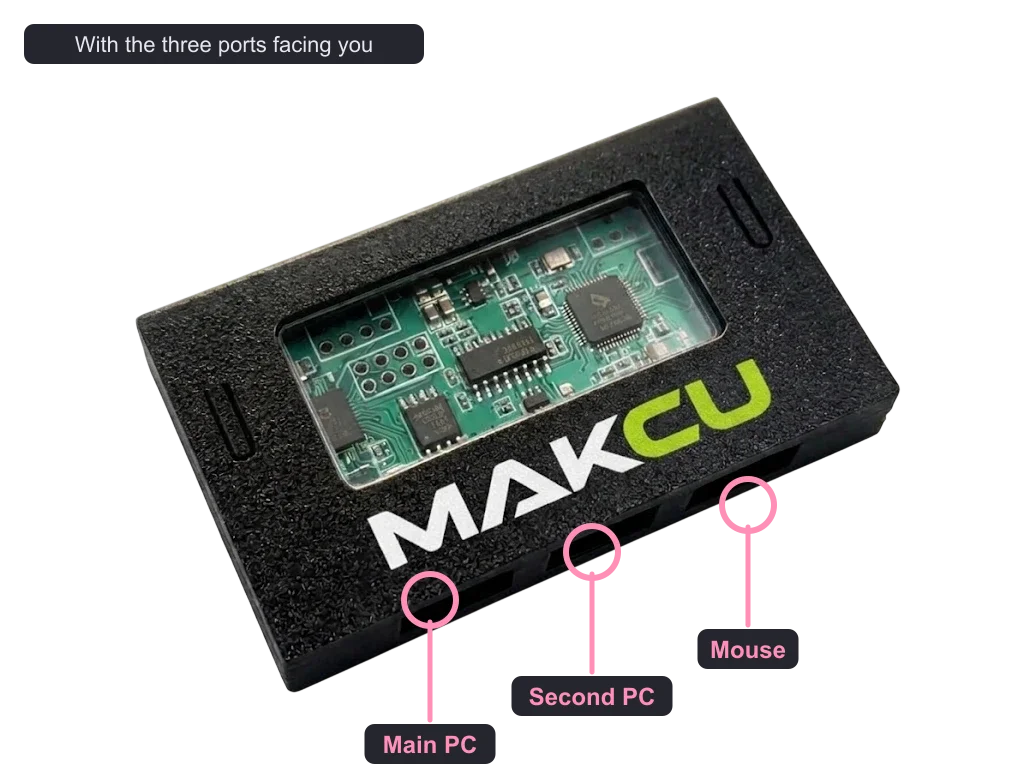
- Right port: your mouse or keyboard.
MAKCU does nothing with an empty port, so plug this in first. A wireless one goes in through its own USB receiver. - Left port: the main PC.
Use a port on the back of the case. Front and top ports go through a cable inside the case and can cause dropouts. They can work, but the back is more reliable. Your main PC sees one normal mouse. - Middle port: the second computer.
This is how your second computer tells MAKCU to move the mouse. - Both computer cables at once.
The board gets its power from the main PC cable, but it only runs with both plugged in. The second-computer cable carries no power, so the two PCs never power each other.
Check that your mouse works on the main PC as normal before you go on.
The driver and the port
- Install the CH343 driver on the second computer.
A driver is a small free program that lets Windows talk to MAKCU's chip. Get it from WCH, the chip maker, at wch-ic.com, not from a driver download site. Without it no COM port shows up. - Find the port.
Right-click the Start button and open Device Manager. Under Ports (COM & LPT) there's a new entry ending in something like (COM3). That number is your COM port, so write it down. MAKCU's maker says it should be below 10. - Leave the speed at 115200 unless your software asks for more.
The speed of the link (baud) is 115200 by default, and some software supports 4 Mbps. To switch MAKCU to 4 Mbps, press its left button four times quickly. The LED flashes four times for 4 Mbps and once for 115200. MAKCU and your software have to be set to the same speed.

Point your software at it
Your software has to support MAKCU, and you pick the COM port in the software's own settings. MAKCU comes already flashed with v3 full passthrough firmware, so there's nothing to flash until v4 is out. Don't update its firmware unless we ask you to in a ticket. When v4 is out, you flash it over USB, one side at a time, using the boot buttons.
If it is not working
- Mouse not passing through.
Check the mouse is in the right-hand port with the ports facing you, then try another rear port on the main PC, then another mouse. - No COM port.
The CH343 driver isn't installed, or one of the two computer cables is unplugged. - Software can't talk to it.
Wrong COM number or wrong speed. Most software expects 115200, so check MAKCU isn't still set to 4 Mbps. - COM number 10 or higher.
MAKCU's maker says to keep it below 10. In Device Manager, right-click MAKCU's entry under Ports (COM & LPT) and choose Properties, then Port Settings and Advanced, and pick a number below 10 under COM Port Number. The maker says you can take one marked as in use if every low number is taken. Then set the new number in your software. - Reading the lights.
MAKCU's maker says a solid light means it's connected and working, off means it isn't connected, and a slow blink means a warning or a setting being changed. - Keyboard does nothing.
MAKCU's information page lists firmware 3.9 for keyboards, so ask in your ticket before you update it.
With all four ticked, MAKCU is ready. If you have a fuser, Video fuser setup is the last step. If something here still won't work, open a ticket in our Discord and tell us which step it stopped at, or post on the support forum.
No account needed. It tells us what to write more of.