
FERRUM is an aim device that sits between your mouse or keyboard and your main PC. Your second computer sends it moves, and your main PC sees one normal mouse. It polls at up to 8000 Hz and speaks KMBox B+ Pro commands, so it's the one to get if you have an 8000 Hz mouse or you're replacing a KMBox.
What FERRUM is
FERRUM is a mouse and keyboard passthrough. Everything you do with your mouse goes straight through it to your main PC, and any moves your second computer sends get added on top.
- Up to 8000 Hz.
It's a high-speed USB device, so it can send up to 8000 reports a second. It can only pass on what your mouse sends, so a 1000 Hz mouse still gives you 1000 Hz. - KMBox B+ Pro compatible.
Software written for a KMBox B+ Pro works with it as it is. - Two ways to connect your software.
A COM port, or a network address the Ferrum Utility calls Net, for software made for KMBox Net or DHZBox. - Mouse, keyboard, or both.
It takes one device at a time on its input port.
How it works in a DMA setup
Your DMA card gets the game's memory to your second computer, and your software decides what to do with it. FERRUM is how that decision reaches your mouse. Without an aim device, your software can only show you things.
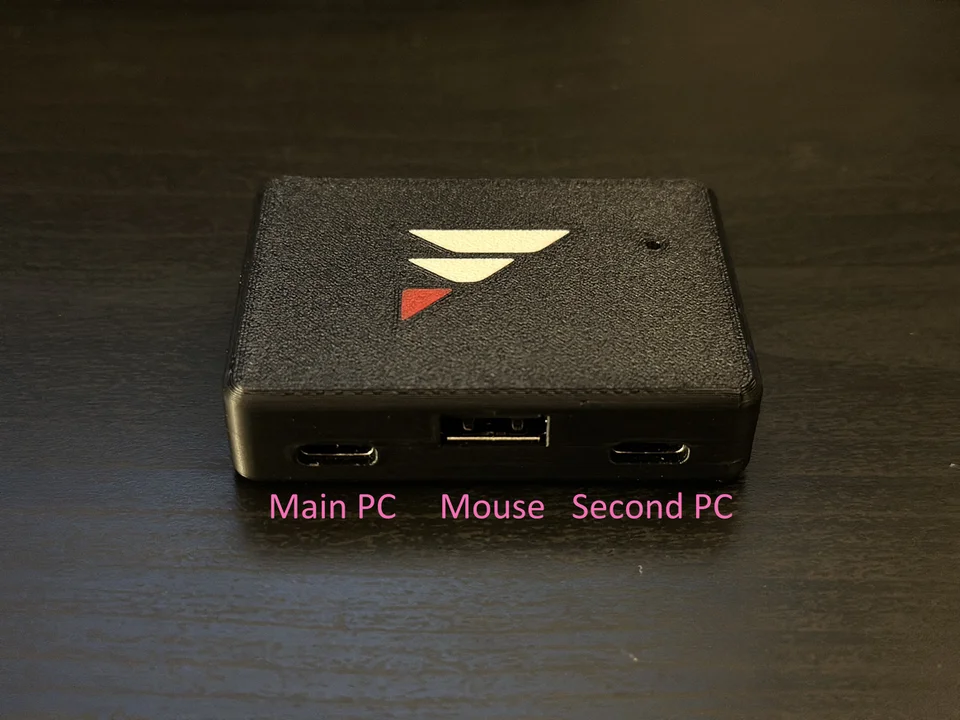
| Port | Goes to | What it does |
|---|---|---|
| Left, USB-C | Your main PC | Shows up as your mouse or keyboard |
| Middle, USB-A | Your mouse or keyboard | One device at a time. USB hubs don't work here |
| Right, USB-C | Your second computer | Where your software and the Ferrum Utility talk to it |
The middle port is different from MAKCU's. On MAKCU the middle port goes to your second computer, on FERRUM it's your mouse. Check before you plug in if you're switching.
What to look for in an aim device
- Your software supports it.
Check your software's list of supported devices first. FERRUM works with software made for KMBox B+ Pro, KMBox Net and DHZBox, and some MAKCU commands. - A polling rate that matches your mouse.
8000 Hz only helps with an 8000 Hz mouse, and your main PC and game need to keep up with it too. - Your mouse or keyboard works with it.
Wired, or wireless with its own USB receiver. Bluetooth doesn't go through any aim device. - What your second computer runs.
The Ferrum Utility is Windows only. On Linux, only basic KMBox B+ Pro commands work. FERRUM on Linux.
FERRUM vs MAKCU
| FERRUM | MAKCU | |
|---|---|---|
| Price | $160 | $25 |
| Polling rate | Up to 8000 Hz | 1000 Hz |
| USB speed | High speed | Full speed |
| Command set | KMBox B+ Pro, and KMBox Net style over Net | MAKCU's own |
| Driver on your second computer | CP210x, from Silicon Labs | CH343, from WCH |
| Utility | Ferrum Utility, Windows only | None |
| Cables in the box | 2 USB-A to USB-C | 2 USB-A to USB-A |
| Warranty | 3 months | 3 months |
We recommend MAKCU for most people, because it does the same job for a lot less. FERRUM is worth the extra if one of these is you:
- You have an 8000 Hz mouse.
And you want to keep using it at 8000 Hz. - You're replacing a KMBox B+ Pro.
Your software already speaks its commands, so it's the easy swap. - Your software only supports KMBox Net or DHZBox.
FERRUM's Net connection covers those.
MAKCU vs FERRUM has the full comparison, and What is a KMBox? explains the KMBox side.
Any device can get detected, FERRUM included, and the game still sees how your aim moves whichever one you use. Can anti-cheat tell how you aim? explains behaviour detection.
Setup basics
- Wire it up.
Main PC on the left, mouse in the middle, second computer on the right. Use a port on the back of your main PC. - Install the CP210x driver on your second computer.
Without it, no COM port appears. - Install the Ferrum Utility.
It's where you check FERRUM sees your mouse, set the mouse or keyboard mode and get your COM port or Net address. - Connect your software.
COM port if your software asks for one, Net if it asks for an IP address. Connecting your software to FERRUM. - Keep it updated.
Updates go through the Ferrum Utility. Updating FERRUM, and Rolling back FERRUM if a new version gives you trouble.
FERRUM setup walks you through every step.
Common questions
- Does FERRUM work with a keyboard?
Yes. It takes a mouse or a keyboard on its middle port, one device at a time. - Can I plug a USB hub into it?
No. The input port only passes through one device. - Will a 1000 Hz mouse run at 8000 Hz through it?
No. It can only pass on what your mouse sends. - Does it work if my second computer runs Linux?
Partly. Basic KMBox B+ Pro commands work at 115200 baud, but there's no Net port or Utility. FERRUM on Linux. - The mouse drops out or the COM port keeps vanishing.
A bad cable or a front panel port is the usual cause. Testing USB cables for FERRUM and FERRUM not working? cover the fixes. - What if it's faulty?
It has a 3-month warranty and is replaced if it's faulty. Open a ticket in our Discord.
Ready to buy? FERRUM is in the shop. Not sure if your software supports it? Ask on the support forum.
You don't need an account, this tells us what to write more of.