
Every fix here is done on your second PC, unless it says to move a cable on the main PC.
Find what you're seeing below. The setup itself is in FERRUM setup.
Mouse doesn't work on the main PC, or isn't in the Utility
- Use a port on the motherboard.
FERRUM's left cable goes into a USB port on the back of the main PC, not a front or top case port. - Try another USB-C cable.
Testing USB cables for FERRUM finds the bad one.
Software doesn't move the mouse
It depends on how your software connects.
- Plug and play, without the Utility.
Your software talks directly to FERRUM's chip. Set it to FERRUM's Silicon Labs CP210x COM port. You can see the number in Device Manager under Ports (COM & LPT). This way only takes basic mouse commands at 115200 baud. - Through the Ferrum Utility.
Set your software to the port on the Serial API tab, and check the Misc tab says Backend Status: Connected. If it says Disconnected, see below.
Connecting your software to FERRUM has the COM and Net settings.
Backend Status: Disconnected
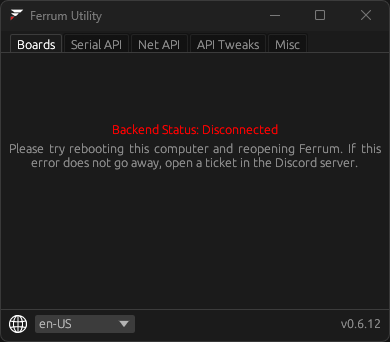
- Reboot the second PC and open Ferrum again. The app tells you to do this too.
- Still Disconnected? Install Microsoft .NET Framework 2.0 and reboot. On Windows 10 and 11 it comes with .NET Framework 3.5: open Turn Windows features on or off, tick .NET Framework 3.5 (includes .NET 2.0 and 3.0) and press OK. FERRUM's team also links Microsoft's .NET 2.0 download.
- Still Disconnected? Run
C:\Program Files\Ferrum\ferrum-uninstaller.exe, then install the Ferrum Utility again with FERRUM's setup tool. - If it still says Disconnected, open a ticket.
Software clicks too early
Some software moves the mouse and clicks right away, and the click lands before the move. Open the Misc tab and raise Added Input Latency (ms). Some software works better at 5.0 ms.
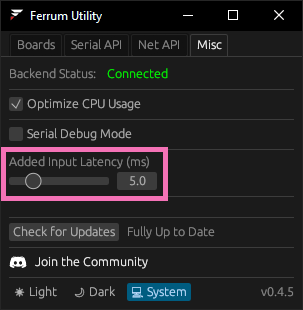
This picture is from an older version of the Utility. If you can't find the setting on your Misc tab, ask in your ticket.
Still stuck
Open a ticket in our Discord (how to open one). Tell us what the Boards and Misc tabs show, and which software you use.
Did this help?
You don't need an account, this tells us what to write more of.