

GODLIKE video fuser setup and wiring
Video fusers says which model fits your monitor. The three are wired a bit differently, so find yours in the table first.
Before you start
What each model needs
| 10th Gen HDMI | 10th Gen DP | 4K Pro | |
|---|---|---|---|
| Main PC and second computer plug in with | HDMI | HDMI | DisplayPort |
| Your monitor plugs in with | HDMI | HDMI, DisplayPort, or both at once | DisplayPort |
| Cables in the box | 2 HDMI | 2 HDMI | 2 DisplayPort |
| Cable rating for the top modes | 18 Gbps HDMI | 48 Gbps Ultra High Speed HDMI for 1440p at 165Hz | VESA-certified DP8K |
| Power | 12V 2A adapter from its box | 12V adapter from its box | 12V 2A adapter from its box, US plug, EU plug adapter included |
| Second computer's graphics | Anything that can send your mode over HDMI | Anything that can send your mode over HDMI | At least an AMD RX 470, an NVIDIA RTX 2060 or Radeon 780M |
| Controls | Remote only | Remote and buttons on the unit | Remote and front buttons |
If your second computer only has DisplayPort or USB-C out, a 10th Gen model needs an adapter on that input. Above 1080p at 144Hz it has to be an active one. Getting HDMI out of a DisplayPort computer says which kind to get.
Wire it up
The inputs are marked on the back of the box. On the HDMI model and the 4K Pro, PC1 (M) is the main PC and PC2 (S) is the second computer. On the DP model they're written in Chinese: 主机 for the main PC and 副机 for the second. The output to your monitor is marked VIDEO OUT on the HDMI model, HDMI OUT and DP OUT on the DP model, and DP OUT on the 4K Pro.

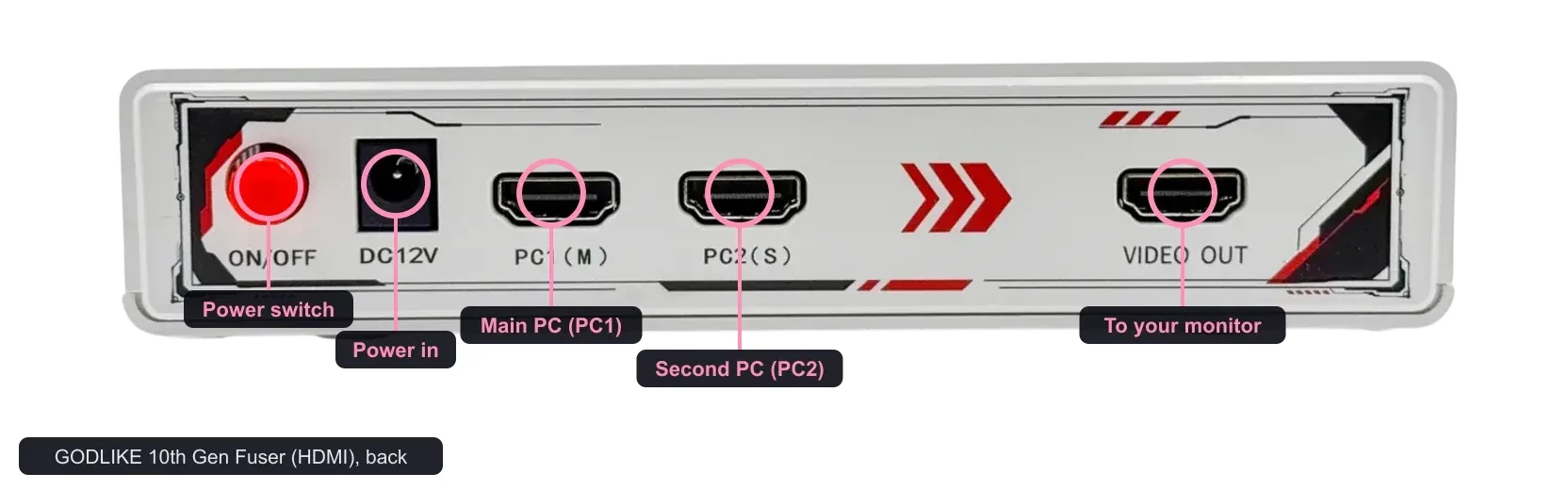
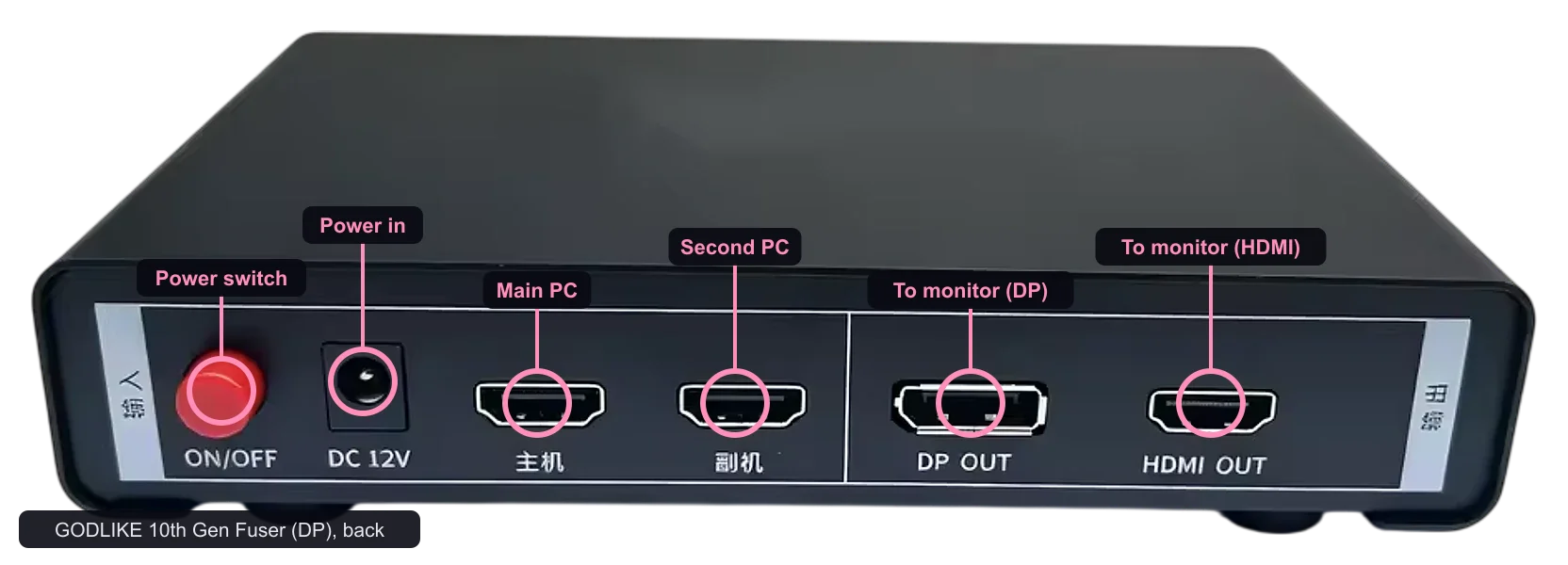
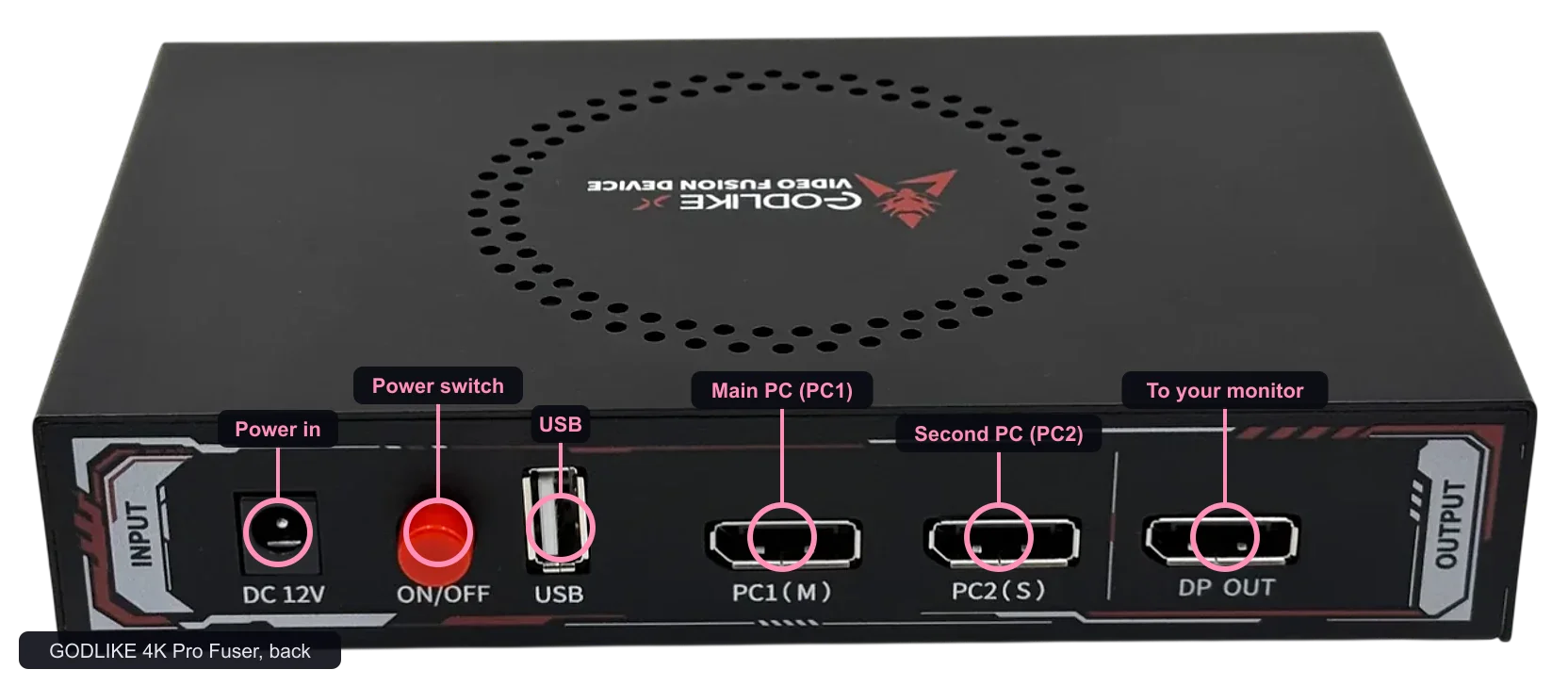
- Main PC into the main input, from the graphics card, or from the motherboard if you use integrated graphics.
- Second computer into the second input.
If you swap the two, the game ends up on top and it looks like the fuser is broken. - Output to your monitor.
On the DP model you can use HDMI and DisplayPort out at the same time. - Power last, then switch on.
Set both computers the same
Set both computers to the same resolution and refresh rate, and make it a mode your fuser supports. On each computer, open Settings, System, Display and set Display resolution. Then open Advanced display and pick the rate next to Choose a refresh rate. On Windows 10 that's Advanced display settings, then Refresh rate. Windows only shows rates your graphics and the screen at the other end support. If the rate you want is missing on the second computer, it can't send it from that output.
Set the second computer's desktop background to plain black too (Settings, Personalization, Background, Solid color). Black is see-through on the fuser, and most software draws its overlay on black. So only the overlay shows over your game.

On the 10th Gen models EDID passes through. Each graphics card sees your real monitor and offers its normal modes, so there's nothing else to set up. The 4K Pro's listing doesn't say either way.
Pick the mode
- Use the remote, or the buttons on the unit on the DP model and the 4K Pro. GODLIKE uses the same remote for all its models, so it has buttons for modes your box may not do (the 4K PRO row on a 10th Gen). Pick a mode from your model's list in Video fusers.
- Start with a lower mode if nothing comes up, then go up. A mode change takes about ten seconds on the DP model. Older generations took forty seconds or more.
- Switch channels to check each picture on its own, then go back to fusion.
If there is no picture
Work through these in order:
A mode that won't come up is often a cable that isn't rated for it, an adapter in the path, or a mode your monitor or graphics card won't take.
Final check
If there's still no picture after the recovery steps, open a ticket in our Discord and tell us your fuser model, your monitor and the mode you're trying.
No account needed. It tells us what to write more of.