
Both pages change real Windows settings, and both are optional, so you can leave them alone. This is what each switch does, so you only change what you mean to. MewTools makes a restore point before every change, and every change can be undone.
For most people, one switch here is worth turning on: Stop Windows Update from changing drivers.
Windows Update
Open Windows Update in MewTools.
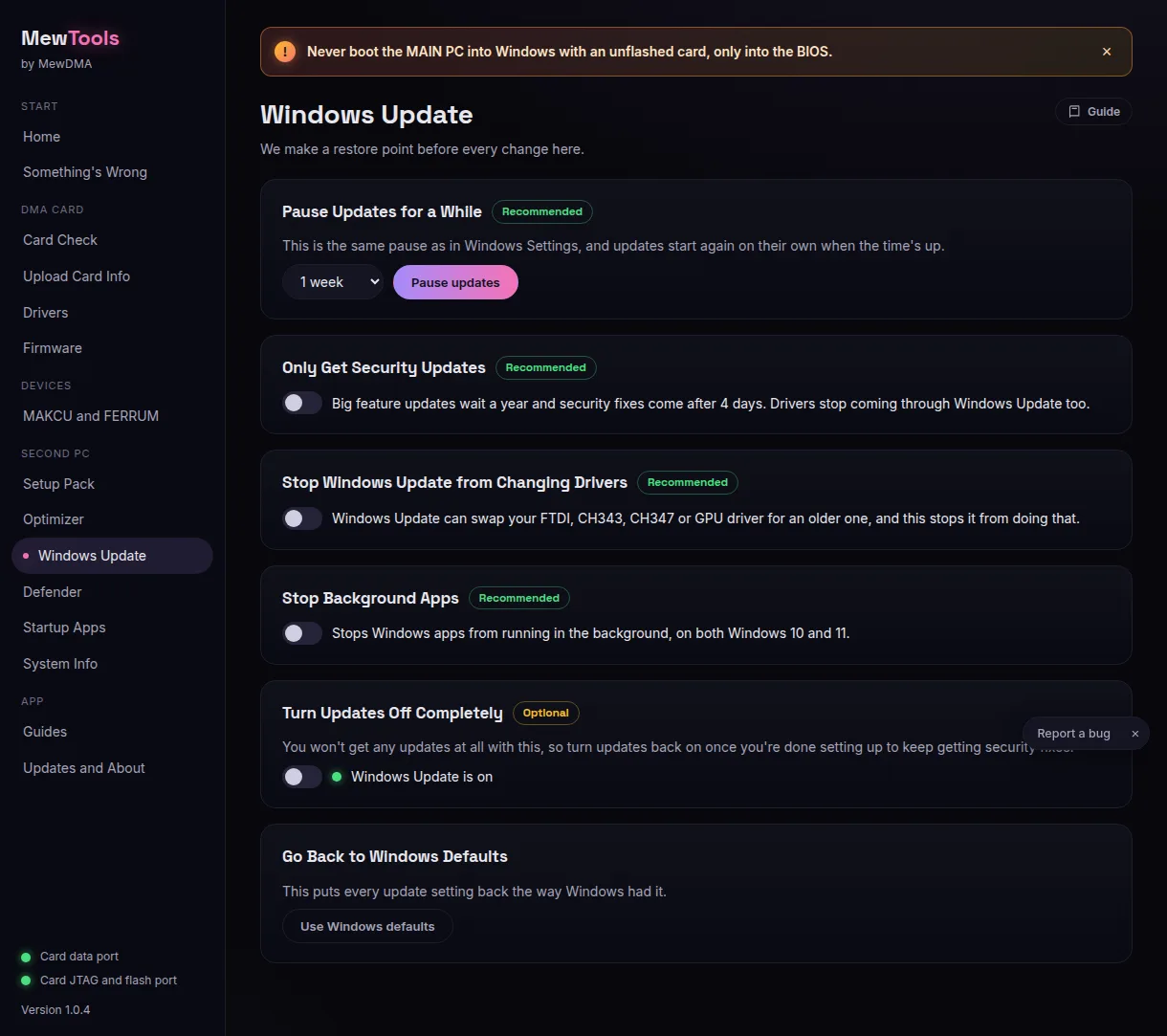
- Stop Windows Update from changing drivers.
Stops Windows from putting older drivers over your FTDI, CH347, CH343 and GPU drivers. Turn this one on. It's the most useful switch on the page, and it's the fix for MT-208. - Pause updates for a while.
The same as the pause in Windows Settings. Pick how long and press Pause updates. Updates start again by themselves when the time is up. - Only get security updates.
Big feature updates wait a year, security fixes come after 4 days, and no drivers come through Windows Update. You still get security fixes. - Stop background apps.
Stops Windows apps running in the background on this PC. It works fine on Windows 10 and 11. - Turn updates off completely.
Optional, and most people should skip it. You get no security fixes while it's off, and Defender stops getting new virus definitions. Windows can also turn the update service back on by itself. If you use it, turn it back on when you're done. - Go back to Windows defaults.
Press Use Windows defaults and every update setting goes back to how Windows had it.
Defender
Most people never need this page. It's off by default and only for people who know why they need Defender off. With Defender off, the PC has no virus protection.
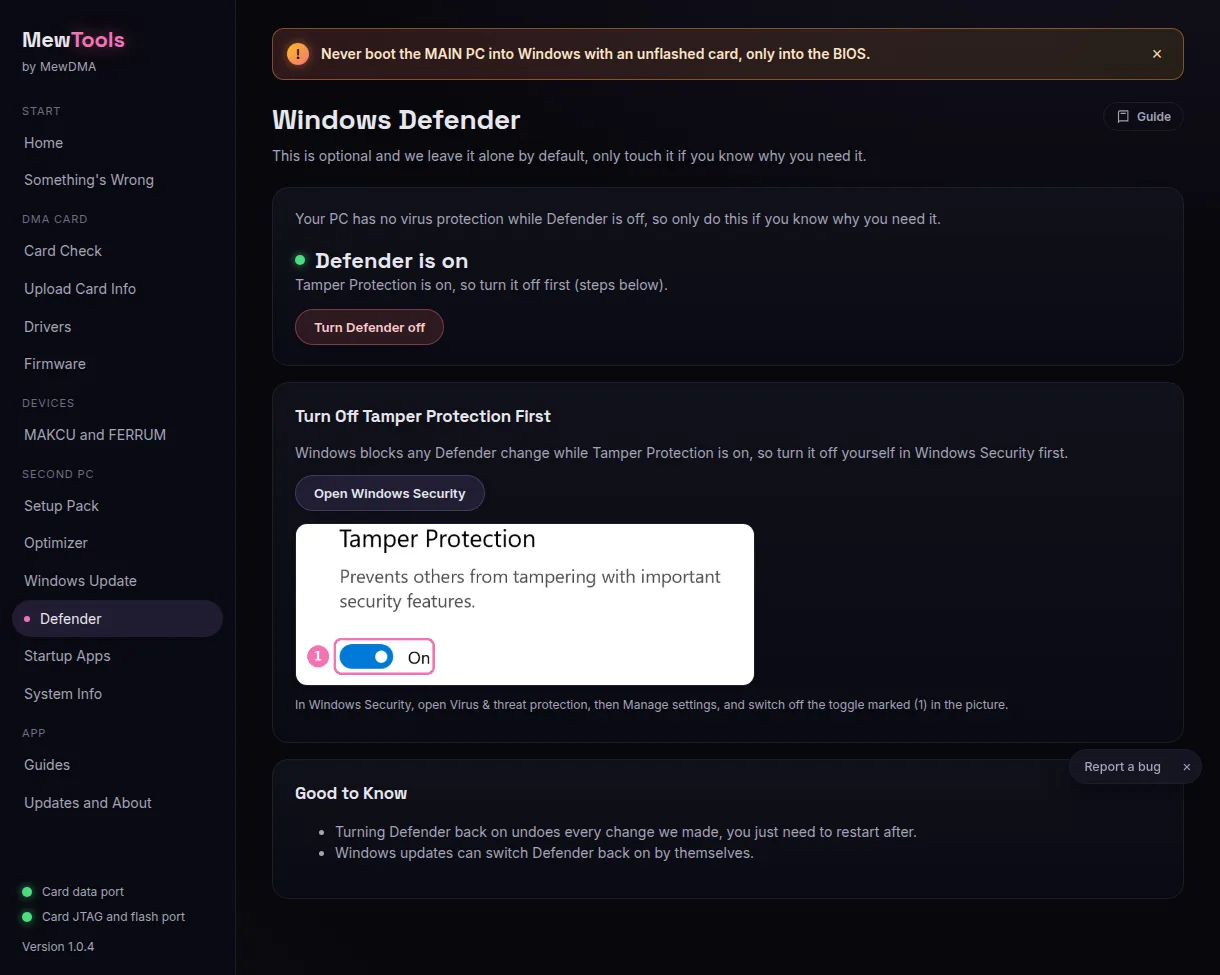
If you only want Defender to leave your DMA software alone, you don't need this page. The Optimizer's Defender exclusion folder C:\DMA makes that folder and tells Defender to skip it. Put only your DMA software in there.
If you need Defender off:
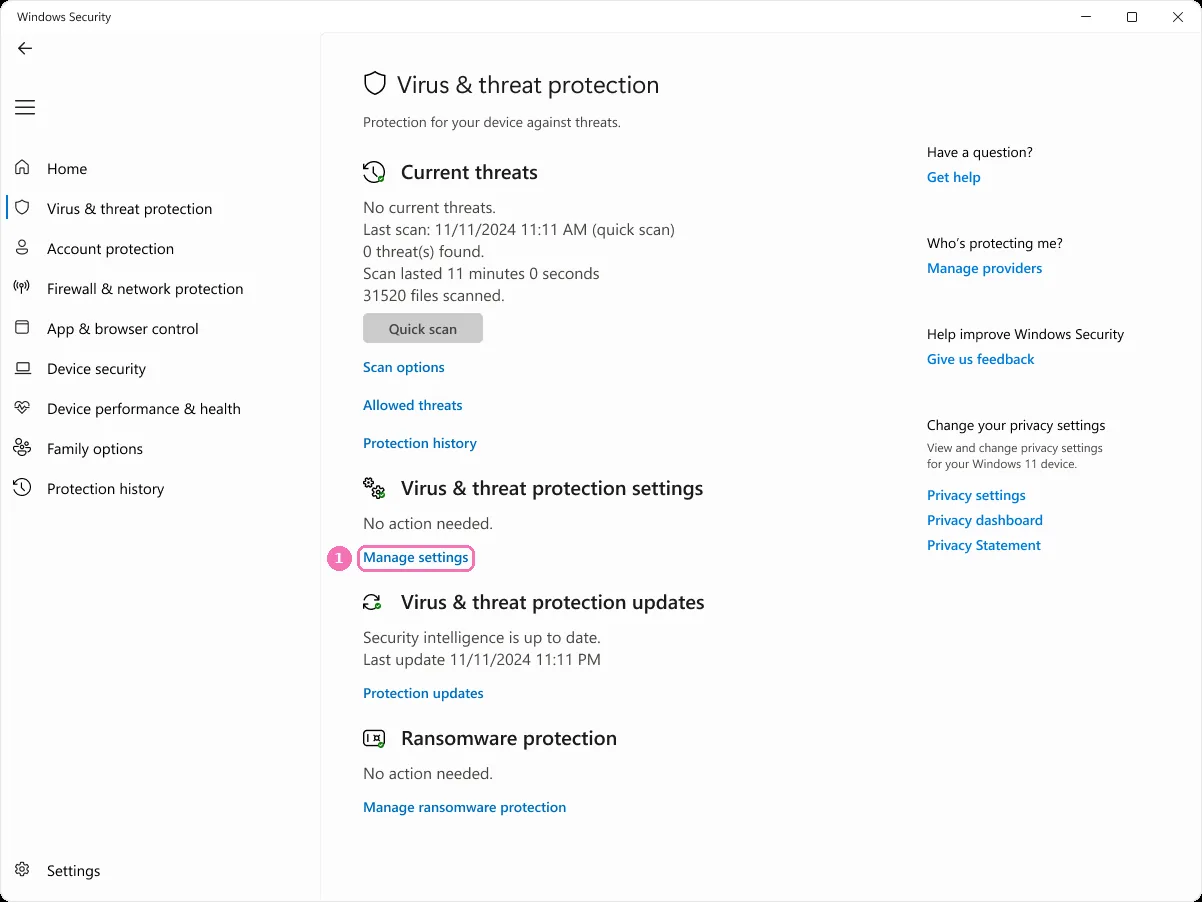
- Press Open Windows Security in MewTools. Windows opens its own security window.
- Go to Virus & threat protection, then press Manage settings (1).
- Switch Tamper Protection (1) off. Windows blocks every Defender change while it's on, and MewTools never goes around it, so you do this part yourself.
- Go back to MewTools and press Turn Defender off.
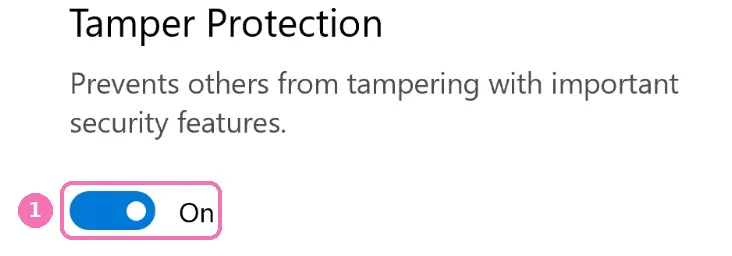
To undo it, press Turn Defender back on. That undoes every change and asks for a restart. Then turn Tamper Protection back on in Windows Security.
- Windows updates can switch Defender back on by themselves.
If it's on again after an update, that's why. - The firewall is never touched.
Only Defender changes.
Putting it all back
- Every switch flips back the other way.
- Use Windows defaults on the Windows Update page puts every update setting back.
- If a setting won't go back, use the restore point MewTools made. Open Start, type Create a restore point, open it and press System Restore.
Codes from these pages, like Tamper Protection still being on, are in MewTools setup pack and optimizer errors.
You don't need an account, this tells us what to write more of.